
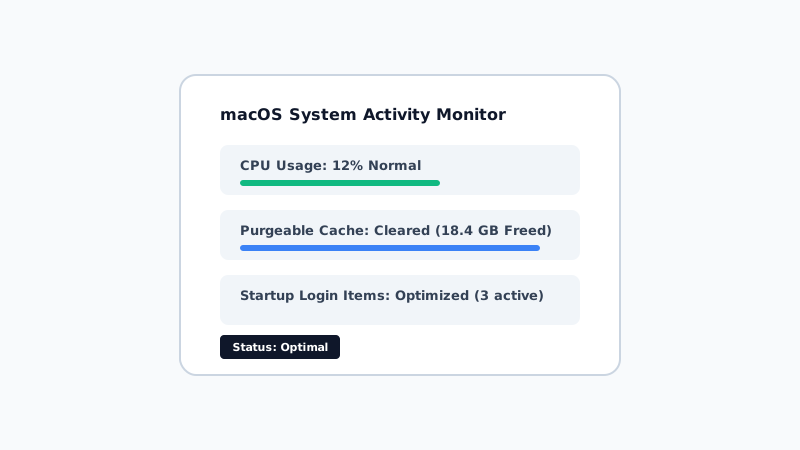
1. Review Login Items & Background Daemons
Go to System Settings > General > Login Items. Turn off background services you don't use daily.
2. Clean Up Hidden Caches & Logs
In Finder, press Cmd + Shift + G and enter ~/Library/Caches. Remove stale app folders for uninstalled software.
Advertisement
Google AdSense Mid Unit
3. Optimize Storage Settings
Use built-in macOS Storage tools under System Settings > General > Storage to review large files and empty your Trash automatically.